
Video Commander
Encode Video to a Target VMAF Score
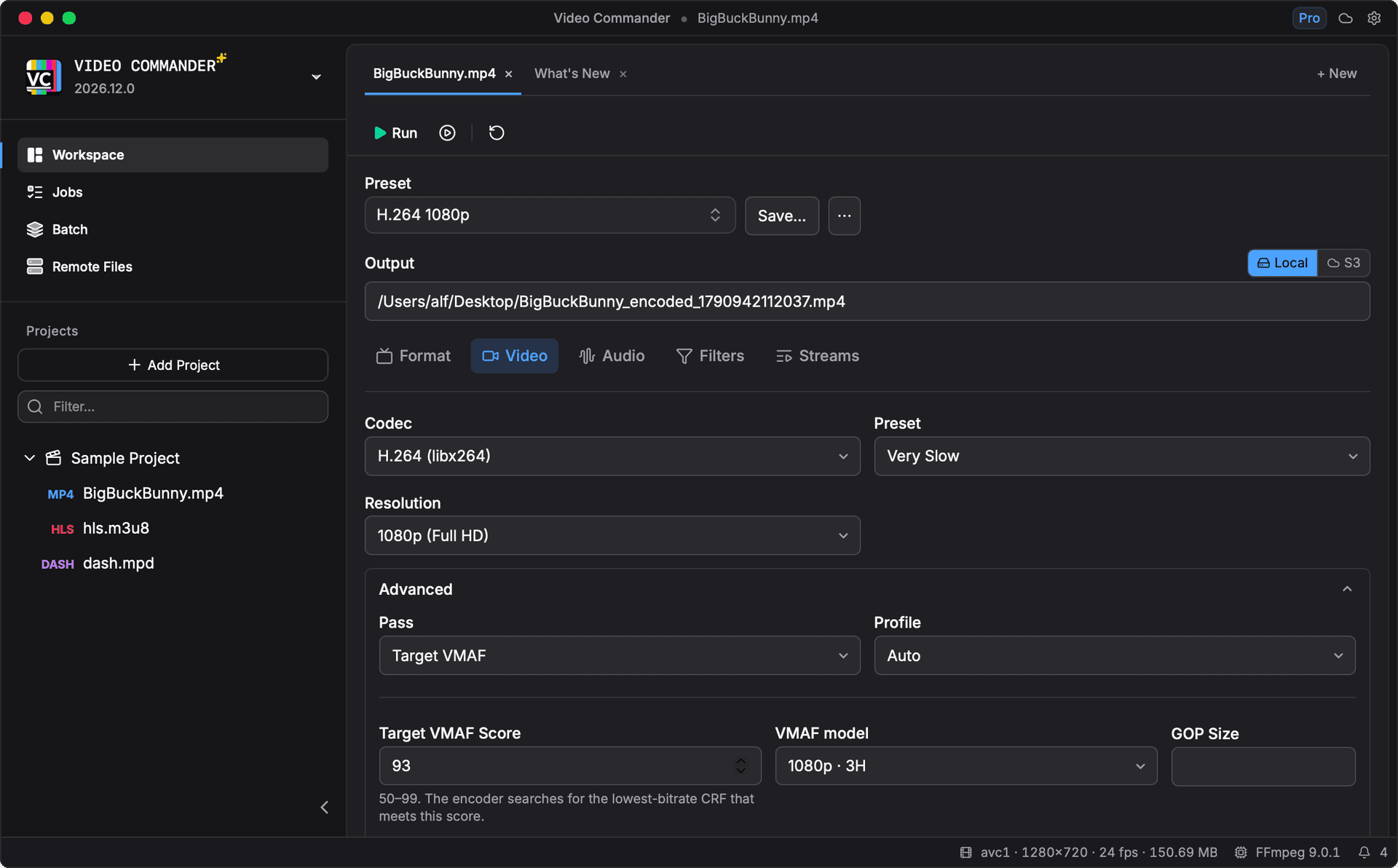
Finding the right CRF for a given quality target means encoding, measuring VMAF, adjusting, and repeating. Video Commander automates that loop: you set the score you want, and the app finds the optimal CRF for you.
How It Works
Set a target VMAF score
Enter a score between 50 and 99 (default 93) and select the model for the target device: VMAF v1 1080p, Phone, 4K, or 4K TV, each with a 50/60 fps variant, or v0.6.1.
The app searches for the optimal CRF
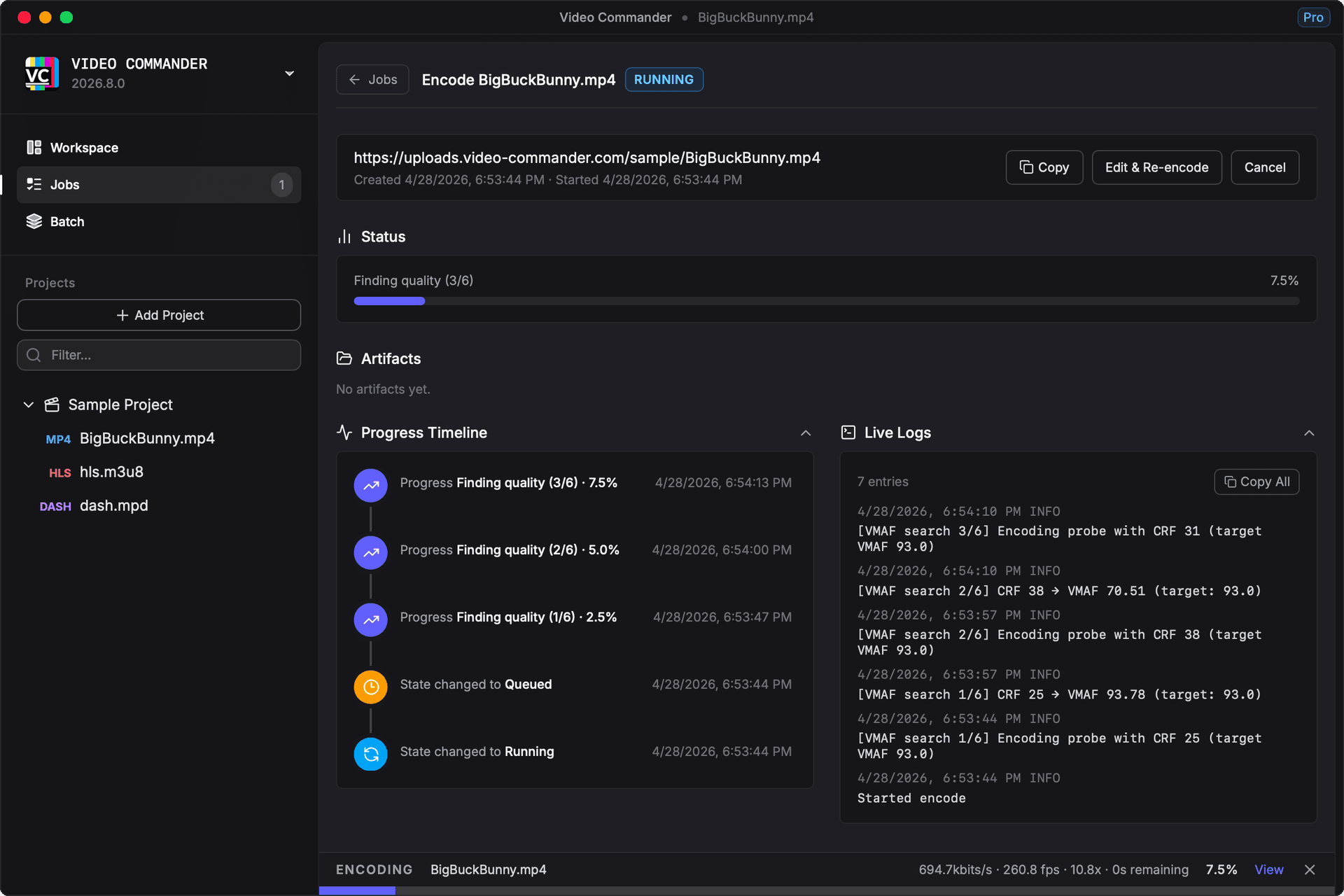
Video Commander encodes a 30-second probe clip from the middle of the source and binary-searches over CRF values, up to six iterations, until it finds the lowest-bitrate CRF that meets your target.
The final encode runs automatically
Once the search converges, the full encode runs at the found CRF. The result shows the CRF used, achieved VMAF score, output file size, and bitrate.
CRF Search in Progress
The jobs queue shows the search stage and iteration count as it runs, such as "Finding quality (3/6)", so you always know where the encoder is in the process.
Capabilities
- Binary search over CRF 0–51, up to 6 probe iterations
- Target VMAF score configurable from 50 to 99
- VMAF model selector: VMAF v1 1080p, Phone, 4K, and 4K TV, with 50/60 fps variants, plus v0.6.1
- Stage labels in the jobs queue: "Finding quality (2/6)" → "Encoding"
- Result summary: CRF, VMAF score, file size, and bitrate
- Falls back to best-effort CRF if target is not reachable
- Checks FFmpeg VMAF support upfront: it tells you before encoding starts, not after
- Works alongside H.264, HEVC, and other supported codecs
Target VMAF vs Manual CRF Tuning
| Task | Manual CRF tuning | Video Commander |
|---|---|---|
| Achieve a quality target | Encode, measure VMAF, adjust CRF, repeat | Set target score, submit once |
| Pick the right CRF | Trial and error based on experience | Automatic binary search |
| Check the result | Run a separate VMAF analysis | Score shown in the job detail |
| Tune for device type | Select libvmaf model manually in CLI | VMAF v1 and v0.6.1 model selector in the UI |
| Know if FFmpeg supports VMAF | Discover at runtime via cryptic error | Pre-flight check with a clear message |
Frequently Asked Questions
- What is VMAF-targeted encoding?
- Instead of specifying a CRF value directly, you specify the VMAF quality score you want the output to achieve. The encoder searches for the lowest-bitrate CRF that meets that threshold, so you get the smallest file that still looks good enough.
- How accurate is the VMAF score in the result?
- The search is based on a 30-second probe clip from the middle of the source. The final encode uses the CRF that met the target on the probe, so the achieved score on the full encode may vary slightly depending on content complexity.
- What happens if the target VMAF score cannot be reached?
- If no probed CRF reaches the target, Video Commander falls back to the lowest CRF tried and encodes at that quality level. The job detail will reflect the actual score achieved.
- Which VMAF model should I use?
- Use VMAF v1 1080p for standard 1080p delivery, 4K or 4K TV for UHD content, and Phone for mobile-targeted encodes. Use the 50/60 fps variants for high-frame-rate content. Each model is calibrated for a different screen and viewing distance. VMAF v0.6.1 is still available for matching scores from older workflows.
- Does my FFmpeg installation need to support VMAF?
- Yes. Video Commander checks for VMAF support before the encode starts and tells you upfront if it is not available, so you are not left wondering why a job failed.
- Is it free?
- Video Commander is free for personal use. A paid license is required for commercial use.
Download Target VMAF Encoding
Video Commander runs locally on macOS and Windows, no subscription for personal use.
Want to learn more? Read the release post for a full walkthrough.
Free to start. Pro for commercial work.
Video Commander is free for personal use. For client and commercial projects, Pro is a one-time $39, with free updates for life.
More Video Commander Tools
- FFmpeg GUI
- FFmpeg GUI for macOS
- FFmpeg GUI for Windows
- HandBrake Alternative for macOS
- Video Encoder for macOS
- FFmpeg Batch Encoding
- MP4 Inspector for macOS
- MKV Inspector for macOS
- MP4Box GUI for macOS
- Video Metadata Inspector
- ffprobe GUI for macOS
- ffprobe Alternative for macOS
- MediaInfo Alternative for macOS
- VMAF GUI for macOS
- HLS Validator for macOS